Why Timers Drift: How to Diagnose and Fix Interval Timer Inaccuracy on Smartwatches
Oct 16, 2026 • 7 min
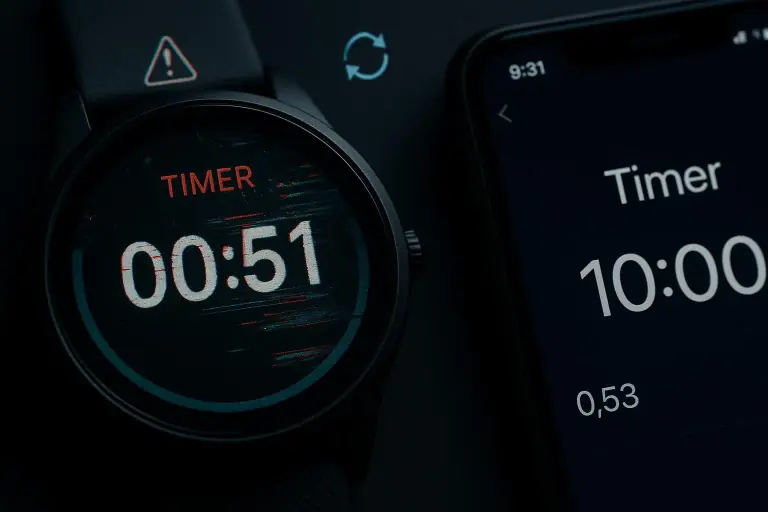
You set a 30-second effort. Your watch buzzes at 32 seconds. Twice. By set five you’re off-rhythm and pissed off. That extra second or two per interval doesn’t feel like a lot—until it ruins a session you were trying to nail.
Here’s the short version: interval timer drift is almost never a mystical hardware failure. It’s usually an interaction between the watch’s clock sources, aggressive power management, and how an app asks (or doesn’t ask) for CPU time. You can prove it in three minutes, fix it in a minute or two for most cases, and if needed, gather evidence that makes support actually helpful.
I’ll walk you through a simple test you can run right now, explain why this happens, give immediate workarounds that work today, and long-term fixes that stop the problem for good.
The quick reality: what "drift" actually looks like
Timer drift = the time your watch reports for a workout diverges from real elapsed time. That could be:
- 2–3 seconds per interval (most common)
- A small cumulative error over a 20–30 minute workout
- Irregular jumps (sometimes ahead, sometimes behind) caused by background activity
If you’re a serious athlete chasing pace or power every second, this matters. If you’re doing a rough Tabata, maybe not. But if you suspect a problem, don’t rely on feeling—measure it.
Micro-moment: last winter I did a stacked hill session while listening to music from my watch. By round six the watch was three seconds ahead of my phone. I switched the music source off mid-run and the timer snapped back. That small detail—music streaming from the watch—was the clue.
Why it happens (in plain English)
Smartwatches juggle several time systems:
- The Real-Time Clock (RTC): a hardware clock that keeps precise time even when the device is asleep.
- The system timer: the OS-level software clock that apps typically use.
- App-level timers: whatever each fitness app implements, often relying on the system timer or scheduled events.
Problems show up when these layers don’t line up, or when the OS decides to deprioritize your timer app to save battery.
The main culprits:
- System clock vs app timer mismatch: If an app uses the system timer and the OS throttles its process, the app’s notion of "one second" can stretch.
- Battery-saving modes and background process kills: OSes aggressively suspend background work to extend battery life. That’s great for longevity, bad for interval precision.
- Resource contention: GPS, music streaming, heart-rate processing—these eat CPU cycles. When the CPU is busy, timer interrupts can be delayed.
- App bugs or poor timer design: Not every app requests the right background priority or wake lock. Some simply use less accurate scheduling methods.
- Sensor noise and phase detection: Optical heart-rate glitches can make a watch think you entered a new phase (rest vs work), even if the timer is fine—this looks like drift.
All these add up to jitter (small timing inconsistencies) which accumulate into visible drift.
The 3-minute test protocol (run this first)
Don’t call support until you have evidence. This test takes three minutes and proves whether the problem is real.
Setup:
- Charge your watch to >80%
- Disable battery saver
- Close nonessential apps (music, maps, etc.)
- Have your phone (or a physical stopwatch) ready with its built-in timer
Test steps:
- Create a simple workout on the watch: 10 intervals of 30s work / 30s rest (10 minutes total). If your watch app won’t let you set that exact layout, do 5 x 30/30 (5 minutes).
- Start the watch timer and the phone’s stopwatch at the same instant.
- Let the watch run without touching it. When the watch says the workout is complete, stop the phone stopwatch.
- Compare times.
Interpreting results:
- Under 5 seconds difference: normal variance.
- 5–15 seconds: noticeable; try the workarounds below.
- Over 15 seconds: significant. Repeat the test 2–3 times to confirm, then collect the data for support.
Write down firmware version, watch model, app name and version, and whether Bluetooth was connected. That will make support conversations shorter and less circular.
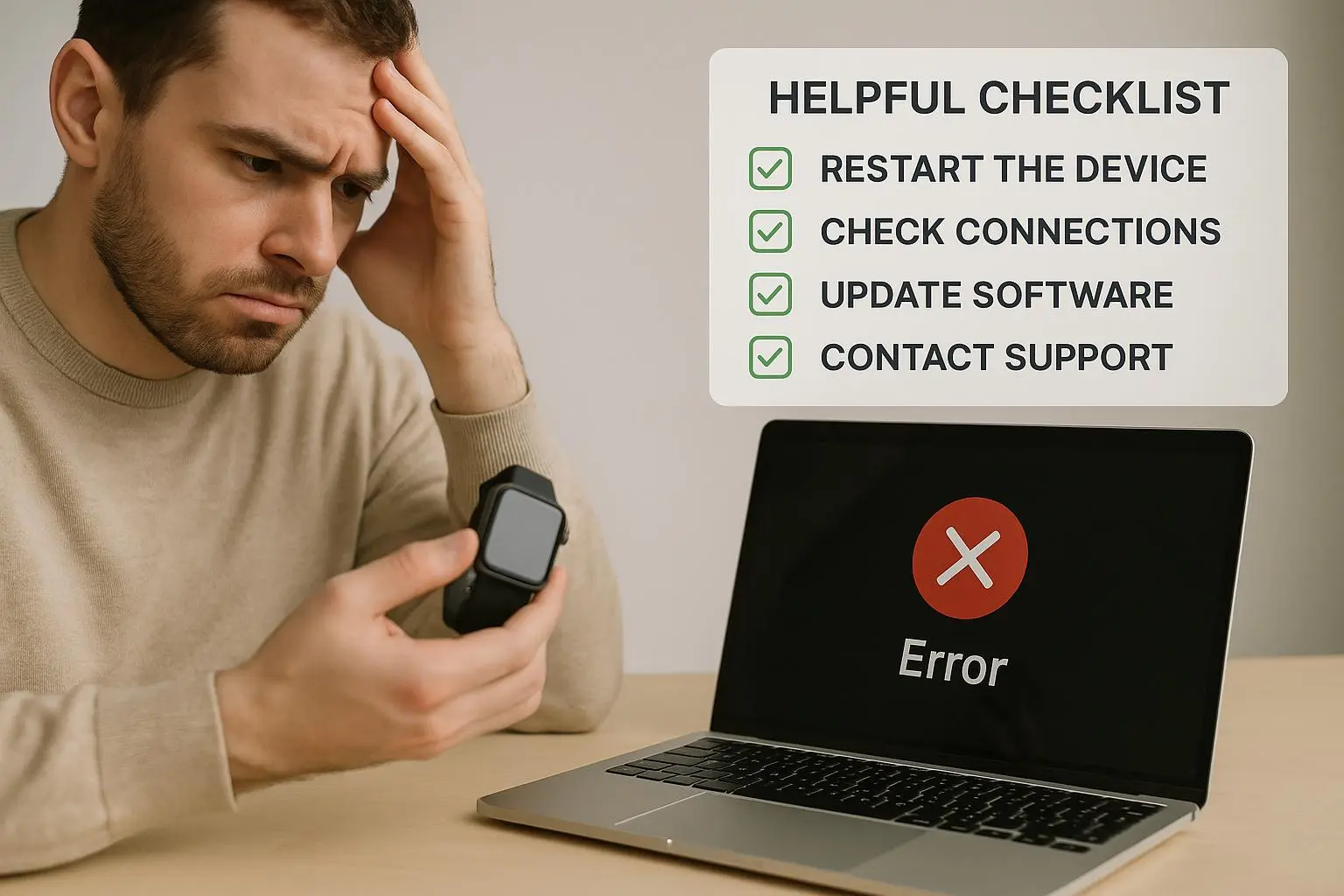
Quick fixes you can try right now
If your test shows drift, try these in order. They move from simplest to slightly more invasive.
- Manual time sync
- Many watches let you force a time sync with your phone. Do it. For Garmin: System → Time → Time Sync. For other devices, open the companion phone app and trigger a sync.
- Result: fixes clock desyncs immediately in many cases.
- Disable battery optimizations for the timer app
- On Android/Wear OS, find the interval app in battery settings and select "Don't optimize" / "Unrestricted." On some watches, disable Ultra-low power/activity-specific modes.
- Result: prevents the OS from killing or throttling the app.
- Use the watch’s native timer
- Built-in stopwatches and timers often use the RTC directly and stay accurate. They might lack features, but they’re reliable.
- Result: instant improvement for most users.
- Stop streaming music from the watch
- If you play music from the watch, move playback to your phone or earbuds. Streaming can spike CPU and Bluetooth usage.
- Result: reduces resource contention that causes interrupt latency.
- Switch to a high-priority interval app
- Pick apps that advertise wake locks or background execution support (Seconds Pro, Gymboss, or lightweight Interval Timer apps). These are designed to resist OS throttling.
- Result: sustained accuracy without disabling battery features globally.
- Calibrate or reset sensors
- For Apple Watch, run the calibration steps. For others, remove the watch, dry the sensor, and reattach—sweat and movement can confuse phase detection.
- Result: fixes apparent timing issues caused by misclassified intervals.
If any of these immediately removes the drift, do another 3-minute test to confirm.
Long-term fixes and best practices
If you want reliable intervals every training session, make these part of your routine.
Keep firmware and companion apps up to date Manufacturers often patch timing and background execution problems in firmware releases. Update both the watch and the phone app, then re-run the 3-minute test.
Turn off power-saving features during workouts Disable UltraTrac, low-power GPS modes, or any performance-limiting setting before interval sessions. Yes, battery takes a hit. But timing improves.
Use automatic time sync Set your watch to sync time automatically with your phone or network. That prevents RTC drift from accumulating over days.
Pick the right mode for the activity Many watches have a dedicated Interval or Training mode that treats timers as high priority. Use it instead of a generic Run or Workout mode.
Consider an external timer for competition For races or sessions where every second counts, use a standalone interval device or a phone app placed where you can see/hear it. Some Bluetooth timers broadcast to multiple devices for synchronized cues.
Gather good logs before contacting support If the issue persists, support requests that include your 3-minute test results, firmware version, the exact app used, and whether drift happens with the native timer will get resolved faster.
When to escalate to support (and what to include)
If your tests consistently show >15s drift and you’ve tried the fixes above, contact support.
What to include:
- Watch model and serial (if asked)
- Firmware version and companion app version
- Exact test steps and results (phone time vs. watch time)
- Whether Bluetooth was connected and whether music/GPS was in use
- Screenshots or a short video of the test if possible
This data allows the support tech to reproduce the issue or filter for known firmware bugs. Without it, you’ll get generic troubleshooting that wastes time.
A short real-world story (what I did and what I learned)
Last summer I coached a small group of runners for a 6-week interval block. Three athletes reported inconsistent intervals—two on the same watch model, one on a different brand. I had them all run my 3-minute test before our next session.
One athlete’s watch was 18 seconds fast across a 10-minute set. Another had a 7-second lag. The third was spot on. We compared settings and found the fast watch was in an "Ultra battery" activity mode and streaming music from the watch; the lagging watch had a third-party HIIT app with battery optimizations enabled in Android. I had them:
- Switch music streaming to a phone
- Disable ultra battery mode for activities
- Set the app to "no battery optimization"
We re-ran the test. The first watch dropped from +18s to +1s. The second fixed completely. The third remained accurate, confirming the issue was configuration, not hardware. Lesson: the problem usually hides in settings and resource competition, not the watch chip.
Two final quick notes
If you’re a developer or power user: learn the difference between system timers and RTC, and look for apps that use wake locks. It matters.
If you’re a casual exerciser and your watch is off by a couple seconds, don’t stress. But if you coach, race, or need measurable progress, make the test part of your warm-up.
TL;DR (what to do right now)
- Run the 3-minute test (phone vs. watch).
- If drift >5s, disable battery optimization and stop streaming from the watch.
- Use the native timer or a high-priority interval app.
- Update firmware and mark your test results before contacting support.
Timer drift is annoying, but it's fixable. Most of the time you don't need a new watch—you just need to give the OS fewer excuses to drop your timer.