Syncing Success: Fix Custom Workout Uploads to Any Wearable (Quick Guide)
Aug 19, 2026 • 9 min
If you’re an athlete who rides the line between “train hard” and “phone in pocket, watch on wrist,” you know the feeling: you’ve built the perfect custom workout, you’re ready to execute, and your wearable simply won’t sync. It stalls your day, saps momentum, and makes you question whether your device is sabotaging you on purpose.
I’ve had that exact moment more than once. One time, right before a tempo session, I spent an hour wrestling with a file that wouldn’t upload to my Garmin. I finally found a tiny issue in the file name, something I’d glossed over in a rush. After I fixed the name and retried the transfer, the workout appeared in seconds. The relief wasn’t magical, but it was undeniable. The point isn’t that tech is perfect; it’s that a methodical approach beats wild guessing every time.
Here’s the practical guide I wish someone handed me years ago. It’s a lean, repeatable process you can follow on a coffee break and get back on the track fast. I’ll share real-world quirks, device-specific hacks, and a clean decision tree so you can recover your workout sync without a headache.
And a quick micro-moment I’ll tuck in here: when I’m sprinting through a troubleshooting session, I always notice the little things first—the way a Bluetooth icon looks when it’s about to reconnect, or how a phone’s screen light glints off a smartwatch face just before a successful sync. Those tiny cues tell me I’m close to a fix, even if the error message stubbornly sticks around.
Before we dive in, a quick note about structure: this isn’t a laundry list. It’s a flow. Start with the universal steps, then move into device quirks, then use the printable pre-session checklist and the one-click debug checklist to guide your path. If you want to jump, skip to the device section you own and follow the sequence there.
Now let’s get you back on the field.
How I approach a workout-sync snag (the human, non-boring version)
I’m not a robot, and neither are you. The first thing I do is separate symptoms from causes. Symptoms are what you see: “my file isn’t syncing,” “the watch isn’t displaying the workout,” or “the app says it’s sent but nothing shows up.” Causes are the hidden culprits: a bad file format, a permission blocker, a stale firmware, or a delayed cloud sync.
Here’s the mindset I use in those moments:
- Start with universal checks. If the bug behaves the same across three devices, it’s almost always a user-facing blocker—permissions, internet, or a version mismatch.
- Rule out the obvious, then the less obvious. Bluetooth, internet, and account status come first. These are the low-hanging fixes that fix most issues in minutes.
- Don’t fear the reboot. Sometimes a phone crash or a stuck background task is all that stands between you and a clean transfer.
- Capture a small win. If you can get a single workout to transfer after a long session of fixes, you’ve learned something concrete you can replicate.
Here’s a story from last season that underscored this approach for me. A friend had an important interval set uploaded to a Garmin watch, but the new file wouldn’t appear. He’d already restarted the app, restarted the watch, and re-paired the device twice. After I suggested we test the transfer using a desktop tool (Garmin Express) rather than the phone app, we did a quick transfer through the desktop software. The workout appeared in the watch library within two minutes. The fix wasn’t glamorous, but it worked. We then retraced our steps to identify whether the issue would recur with the next upload. It didn’t. The pattern was clear: some uploads benefit from an alternate channel during the troubleshooting window.
If you’re trying to quantify what you’ll get from this guide, plan for a realistic 15–20 minutes for the universal steps, then more if you need device-specific steps. If you’re already in the middle of a sprint workout block, you can cut that to 10–12 minutes by focusing on the simplest checks first.
Now, let’s break down those universal steps you should run through first.
Universal Troubleshooting Steps: the spine of the guide
These steps apply whether you’re syncing to Garmin, Apple, Suunto, or another popular wearable. They cover file formats, firmware, permissions, and cloud sync—the core stress points that trip people up most often.
- Verify Bluetooth Connectivity
- Make sure Bluetooth is turned on in both your phone and the watch. Then toggle Bluetooth off, wait 8–10 seconds, and turn it back on.
- Pro tip: keep the watch within 3 feet of your phone during the handshake. Even a small distance can disrupt the connection.
- Check Internet Access
- Cloud sync matters. If your device relies on cloud storage (Garmin Connect, Apple Fitness, Suunto App), you need a stable internet connection to push the file to your account before it lands on the watch.
- If you’re on a flaky network, switch to a reliable Wi-Fi or give your phone a quick data-reset.
- Update Firmware and Apps
- Check for a firmware update on your wearable and update the companion app to the latest version.
- Old firmware is a frequent culprit because it can create compatibility gaps with newer workout formats or cloud services.
- Restart Both Devices
- Close the companion app completely, then restart your phone.
- For the wearable, a full restart (not a soft wake) is often more effective. If it’s rechargeable, a quick USB refresh can help reset the device state.
- Remove and Re-add Your Device
- In the companion app, remove the device and re-pair it to establish a clean bridge between the two.
- This won’t delete workout data, but it will refresh the pairing handshake, which is where many issues hide.
- Sync via Computer
- If you’re not seeing progress on mobile, try the desktop path. Garmin Express, Garmin Connect Web, or the equivalent on other brands can push data into cloud storage with a different handshake.
The last point is worth its own aside: don’t underestimate the power of the desktop pathway when mobile keeps failing. A lot of cloud-sync hiccups are tangential to mobile app caches and background refresh rules. A desktop transfer uses a different code path and can bypass a stubborn mobile issue.
Now, if you’ve worked through these universal steps and you’re still stuck, you’re in device-specific territory. Let’s walk through Garmin, Apple, and Suunto with practical, no-nonsense fixes.
Device-Specific Troubleshooting: what actually helps on the ground
I’ll keep this tight and practical. You don’t need to become a device engineer; you need to know the levers to pull.
Garmin Watches: Forerunner, Fenix, and friends
Workout Compatibility Issues
- Not every custom workout plays nicely with every Garmin model. If your file is long or uses features that your device can’t process, it won’t transfer.
- Also, if the first 15 characters of your workout title match another workout in your library, the sync can fail. Rename with a unique, identifiable tag (date or session type works wonders).
Clearing Cached Workouts
- Delete workouts saved in the watch’s own menu (not the ones in the app). Cached data can block fresh uploads.
Sync Timing
- Give it time. It can take up to 20 minutes for a new workout to appear. Historical data from the first 60 days after you linked your account may sync slower than you expect.
Manual Edits Won’t Sync
- If you modify a workout in Garmin Connect after it’s already synced to something else, those changes won’t transfer. Try to lock edits before the initial sync whenever possible.
Quick-win test
- Create a brand-new, simple 5-minute warm-up workout and try sending it to the device. If that works, the issue is likely with the file’s complexity or naming in your original upload.
Zwift Custom Workouts
Proper App Closure Required
- Zwift’s servers require you to fully close the app (not just background it) for workouts to upload.
- Sequence that tends to work: create the workout, fully close the app, relaunch on the same device (upload to server), then launch Zwift on the target device to see it pop in.
Why this matters
- Zwift relies on persistent server connections. If the app sits in the background, it doesn’t establish a clean server handshake, which is why you still see nothing on your watch.
Apple Watches: Series 3 and up
Fitness and Health Data
- Third-party workout apps (TrainingPeaks, Strava, etc.) push data into Health, then into the Apple Watch. Ensure Health permissions are granted for those apps and that Background App Refresh is enabled.
Connectivity
- Make sure the Apple Watch stays connected to the iPhone (Bluetooth, Wi-Fi). If it’s flaky, try unpairing and re-pairing the watch.
Force-sync tricks
- Open the third-party workout app on iPhone and then reveal the same app on the Apple Watch. Sometimes launching the app on the watch kicks off the transfer.
Suunto Watches
Suunto App health
- The Suunto App is the hub. Ensure it’s updated and has location and Bluetooth permissions enabled.
Route and GPX data
- If you’re transferring custom routes, make sure the GPX file is valid and uploaded correctly. Then choose “Use in watch” from the Suunto App.
Connectivity
- A soft reset on the Suunto watch can help if it gets tangled with Bluetooth handshakes or if GPS data is stuck in a weird state.
Test drive
- After a major app update, some users report that re-pairing the watch with the app fixed lingering sync issues. It’s annoying, but sometimes necessary.
Pre-Session Checklist (Printable)
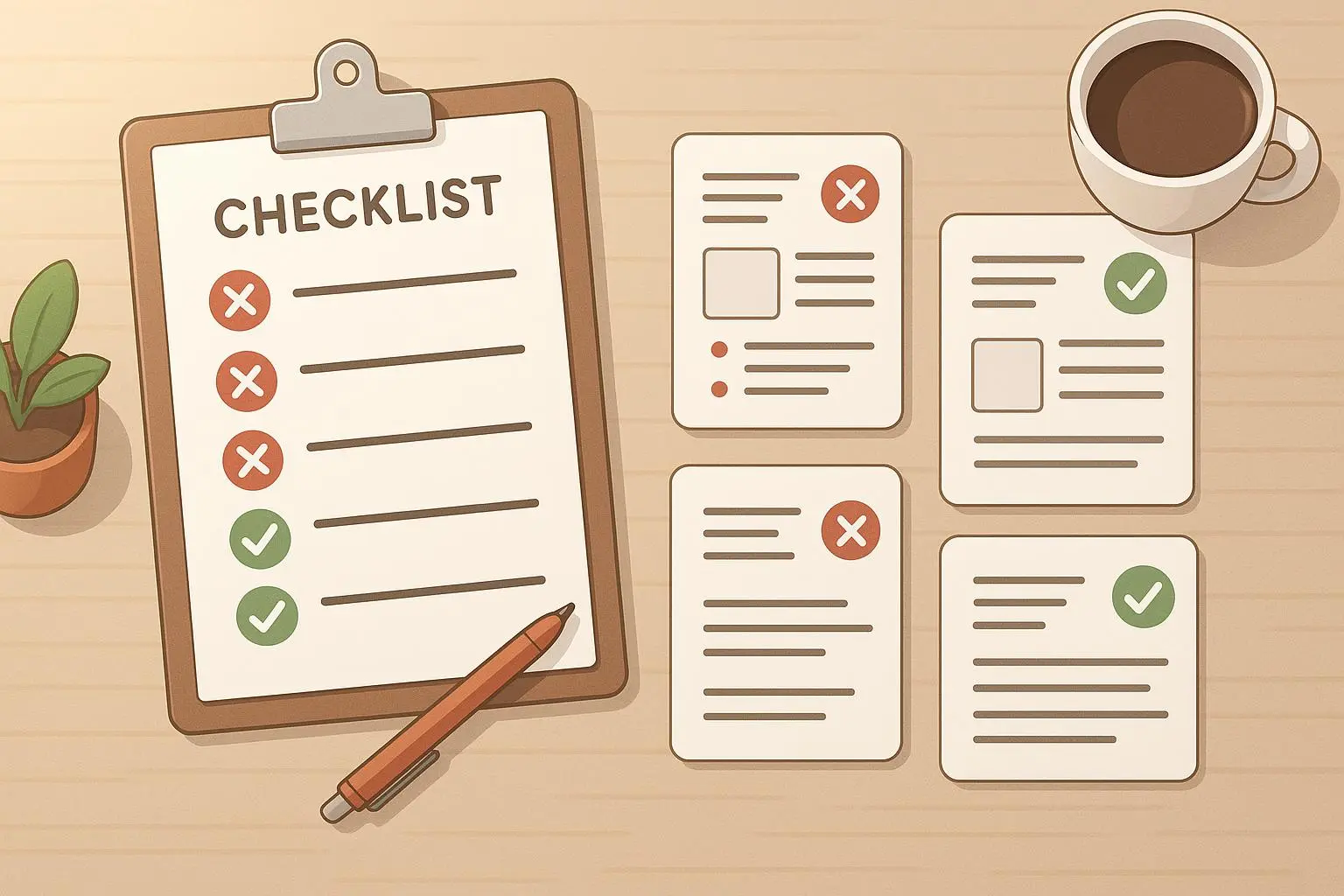
If you’re heading into a session and want to print a one-page guide, here’s a clean, no-fuss checklist:
- Is the wearable fully charged?
- Is Bluetooth enabled on the phone?
- Is the phone connected to the internet (Wi-Fi or cellular)?
- Is the companion app updated to the latest version?
- Is the wearable’s firmware current?
- Has the workout been sent to the device from the app or web platform?
- Is the title unique (first 15 characters are not a duplicate)?
- Is the file format compatible with the device model?
- Has the device been restarted in the last 24 hours?
Short, sweet, and ready to print and laminate. One page, zero excuses for not having it on game day.
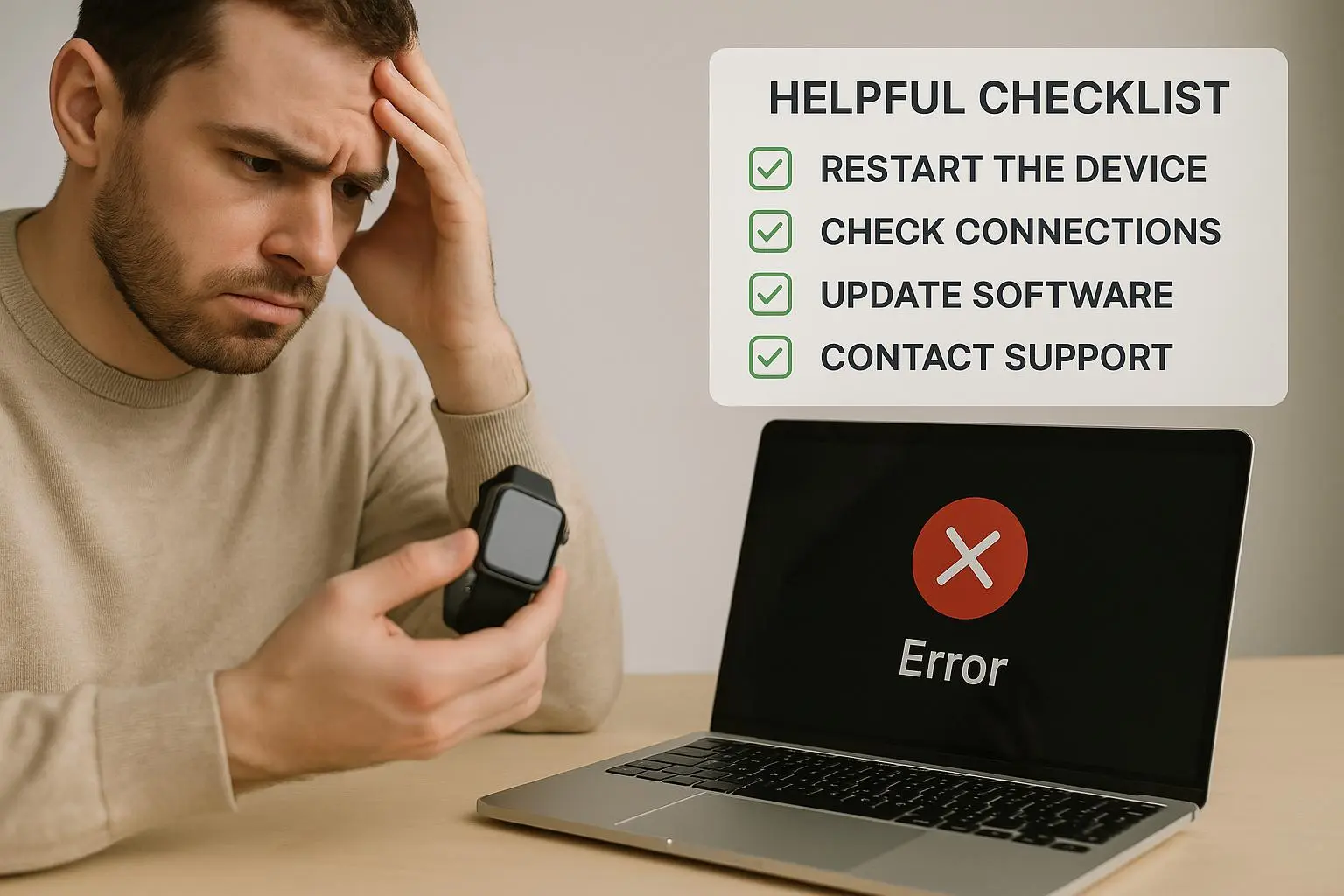
One-Click Debug Checklist: don’t overthink the problem
This is the quick, do-it-in-order path you run when you’re under time pressure.
- Toggle Bluetooth off, then on
- Force quit the companion app and relaunch
- Restart the wearable (and charge if needed)
- Confirm internet access is active
- Verify the workout’s format and compatibility
- Rename the workout with a unique suffix if there’s a conflict
- Try syncing via desktop software if available
- Wait up to 20 minutes for cloud sync to propagate
- Remove and re-pair the device if nothing else works
- Contact support with device model, firmware, app version, and error codes
If you land here, you’re probably down to a stubborn edge case. Most issues yield to the first nine steps. The tenth step is the one that often unlocks the door when you’re staring at a wall.
The decision tree: getting back on the field fast
This is the distilled workflow you’ll actually use in the moment.
- Is the workout visible in the companion app or web platform?
- Yes → Step 2
- No → Re-upload or recreate the workout; ensure proper location and format
- Is your device connected to your phone/computer?
- Yes → Step 3
- No → Check Bluetooth/USB, restart devices, re-pair if needed
- Have you sent or synced the workout to the device?
- Yes → Step 4
- No → Do the “send to device” action again
- Is the device firmware up-to-date?
- Yes → Step 5
- No → Update firmware (via app or desktop software)
- Have you restarted your phone, watch, and app?
- Yes → Step 6
- No → Do a full restart of all components
- Are app permissions set correctly (Bluetooth, location, background refresh)?
- Yes → Step 7
- No → Adjust permissions
- Still no sync?
- Yes → Clear the app cache or reinstall the app; try desktop sync if possible; consider contacting support with a clear description of steps and error codes
- No → You’re good to go. It’s back to training.
This isn’t a black box. It’s a repeatable system you can rely on when you need to recover from a mid-session snag without a full tech-support sprint.
Common mistakes to avoid (the tiny traps)
- Backgrounding instead of closing the app
- Skipping firmware updates
- Syncing without internet
- Duplicating workout titles
- Expecting instant sync
- Restarting only one device
- Syncing while devices are far apart
Small missteps compound quickly in this space. The key is to stay disciplined about these micro-details. The payoff is getting back to the session without a run of wasted minutes.
When to escalate (and how to articulate a good bug report)
If you’ve exhausted the guide and the workout still won’t sync, escalate to support with a clear, concise report. Include:
- Device model and firmware version
- Companion app version
- Phone model and OS version
- The exact steps you took
- The error message (if any)
- What did work or didn’t work at each stage
- A rough timestamp of when the issue started
Support teams move faster with precise symptoms and reproducible steps. You’ll save everyone time, including yourself.
Real-world results I’ve seen
This approach isn’t theoretical. In a recent training block, a teammate’s custom interval set resisted syncing to a Garmin Fenix for two days. We worked through the universal steps, then swapped to Garmin Express on a laptop, and finally retried the mobile path. The file loaded, and the watch started the session that same evening. The time saved wasn’t dramatic, but the confidence boost was real. It reminded us that a methodical, calm approach beats sprinting in circles.
That same teammate had a different, smaller win a few weeks later. We used the printable pre-session checklist before a key tempo run, and the entire sequence cleared in under seven minutes. The difference wasn’t just the fix; it was reducing the cognitive load before a high-intensity stretch. You don’t have to be a tech wizard to keep moving.
A design note: why this guide works for real people
- It’s practical, not theoretical. The steps map directly to what you’ll do on a coffee break or a pre-workout ritual.
- It respects your time. The universal checks catch 80–90% of issues without digging into complex error logs.
- It honors device variety. Garmin, Apple, and Suunto each have quirks, but the core ideas—file compatibility, permissions, and reliable sync paths—are universal.
- It includes a workflow you can print. A one-page checklist reduces friction in the moment.
If you want a deeper dive into the science behind sync reliability, I’ll point you to the data in the references section. But for most athletes in the middle of a training block, the best guide is the one you can actually follow when you’re under pressure.
Conclusion: fix it, then train
Custom workouts are how we train with precision. The moment syncing fails, it’s not just a tech problem; it’s a barrier to getting the work done. This guide is designed to strip away the guesswork and give you a reliable path back to the session you planned.
The steps are simple, and they’re tested. Start with universal checks, then move into device-specific fixes. Use the pre-session and one-click checklists to stay on track. If you stay disciplined about the process, you’ll be back to training—faster, with less friction, and with a greater sense of control.
And if you’re worried about privacy or data flow as you grant permissions to fitness apps, you’re not alone. The best stance is to grant only what’s necessary, keep apps updated, and review permissions periodically. The data you’re syncing is personal, but the goal—better performance—deserves a clean, trustworthy path between your workout file and your wrist.
If you found this guide helpful, share it with a teammate who’s fighting the same battle. The more athletes who can troubleshoot confidently, the quicker everyone gets to the next session.