QuickInvoice Getting Started: Create and Send Your First Invoice
Jul 22, 2026 • 9 min
If you’re freelancing or running a one-person shop, your invoicing process shouldn’t steal your time or your sanity. I learned that the hard way. A few months back, I found myself juggling three different clients, a messy spreadsheet, and a stack of partially filled PDFs. I knew there had to be a better way. That’s when I started testing QuickInvoice Mobile. The goal was simple: create a clean, professional invoice in minutes and actually get paid on time. Here’s how I did it, and what you’ll do to replicate it.
Why professional invoicing matters (and how QuickInvoice helps)
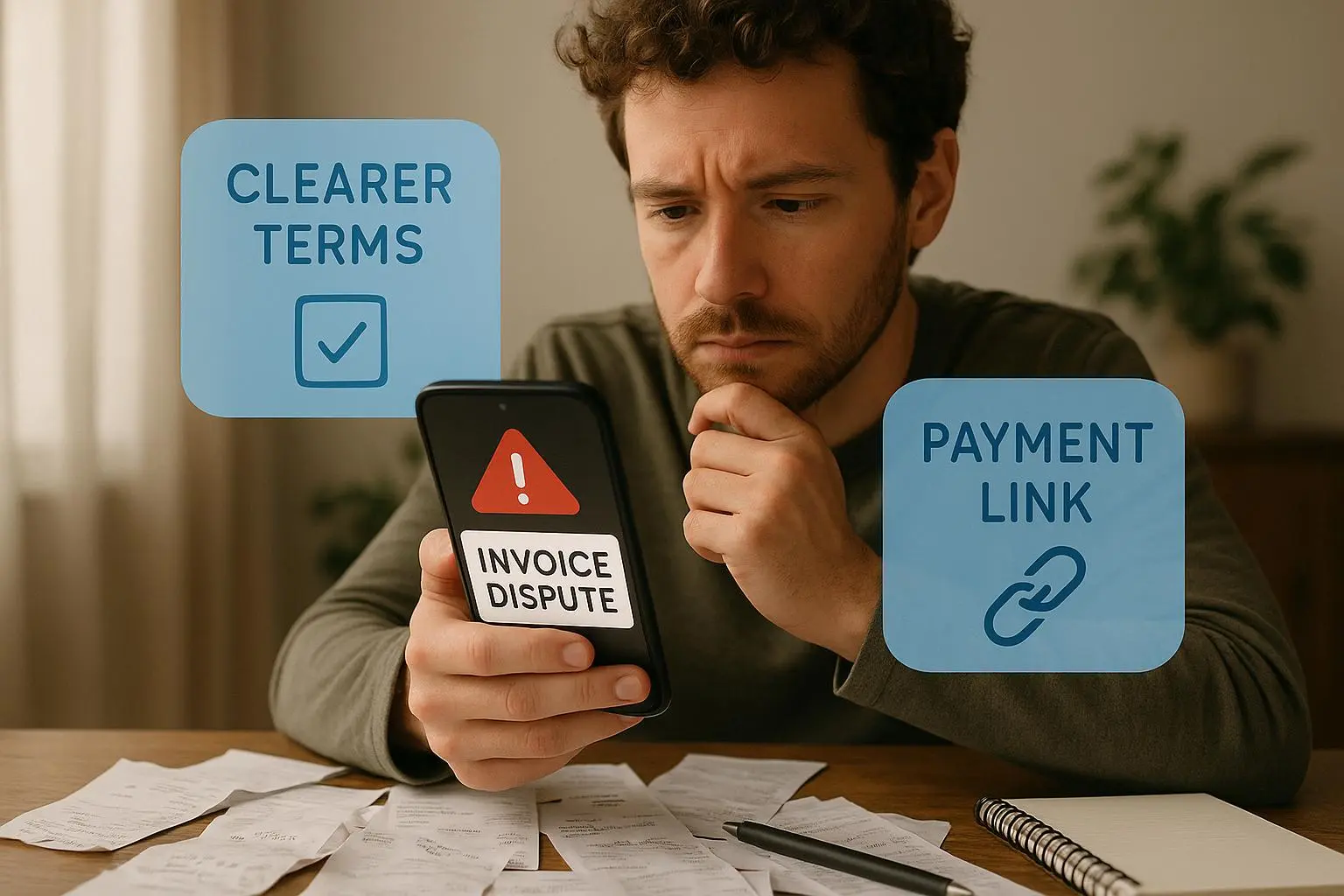
Invoicing isn’t just about getting paid. It’s about signaling to clients that you know your stuff, you value their time, and you want to keep the relationship moving forward. A polished invoice reduces headaches for both sides: it clarifies what you delivered, how you calculated charges, and when payment is due.
There’s real data behind this, too. When small businesses switch to professional invoicing, they often see payment times drop by an average of 10–14 days. That’s not magic—it's fewer back-and-forth emails, fewer disputes, and a client experience that feels smooth from the moment the project ends. QuickInvoice isn’t the only path to this outcome, but it’s the path I reached for because it’s mobile-first, fast, and refreshingly straightforward.
A quick aside that stuck with me: the moment I realized the app could auto-fill client details from a saved profile. It wasn’t a flashy feature. It was the small lever that turned invoicing from “a thing I should do” into “a thing I do.” The fewer clicks, the more likely I’ll actually do it consistently.
And yes, there’s a micro-moment here that mattered: when I created my first invoice on a crowded coffee shop table, the app reminded me to attach a PDF copy for my client. The physical world is noisy—my screen isn’t. That little nudge kept the paperwork clean and the client’s mailbox from becoming a nightmare.
Getting started with QuickInvoice: the straight path
No fluff, just a practical path I used to go from “new user” to “invoice sent.”
- Download and install
- QuickInvoice Mobile is available for iOS and Android. I downloaded it from my phone’s app store, opened it, and within a minute I was staring at a clean onboarding flow. The app is free to start; premium features exist, but you can get a lot done without paying a dime.
- Set up your profile
- You’ll enter your business name, logo, address, and contact details. A clean, high-contrast logo makes a big difference because it shows up at the top of the invoice. If you don’t have a logo yet, a simple wordmark in a bold font works well too.
- If you’re VAT-registered or have a tax ID, this is where you store it. The accuracy here pays dividends when you’re calculating taxes or preparing for audits later on.
- Create clients in a heartbeat
- The Clients section stores each contact’s email, billing address, and currency. If you work with international clients, you’ll appreciate the currency option and locale-friendly date formats. The faster you can pull a client into an invoice, the quicker you’ll get paid.
- Build your first invoice
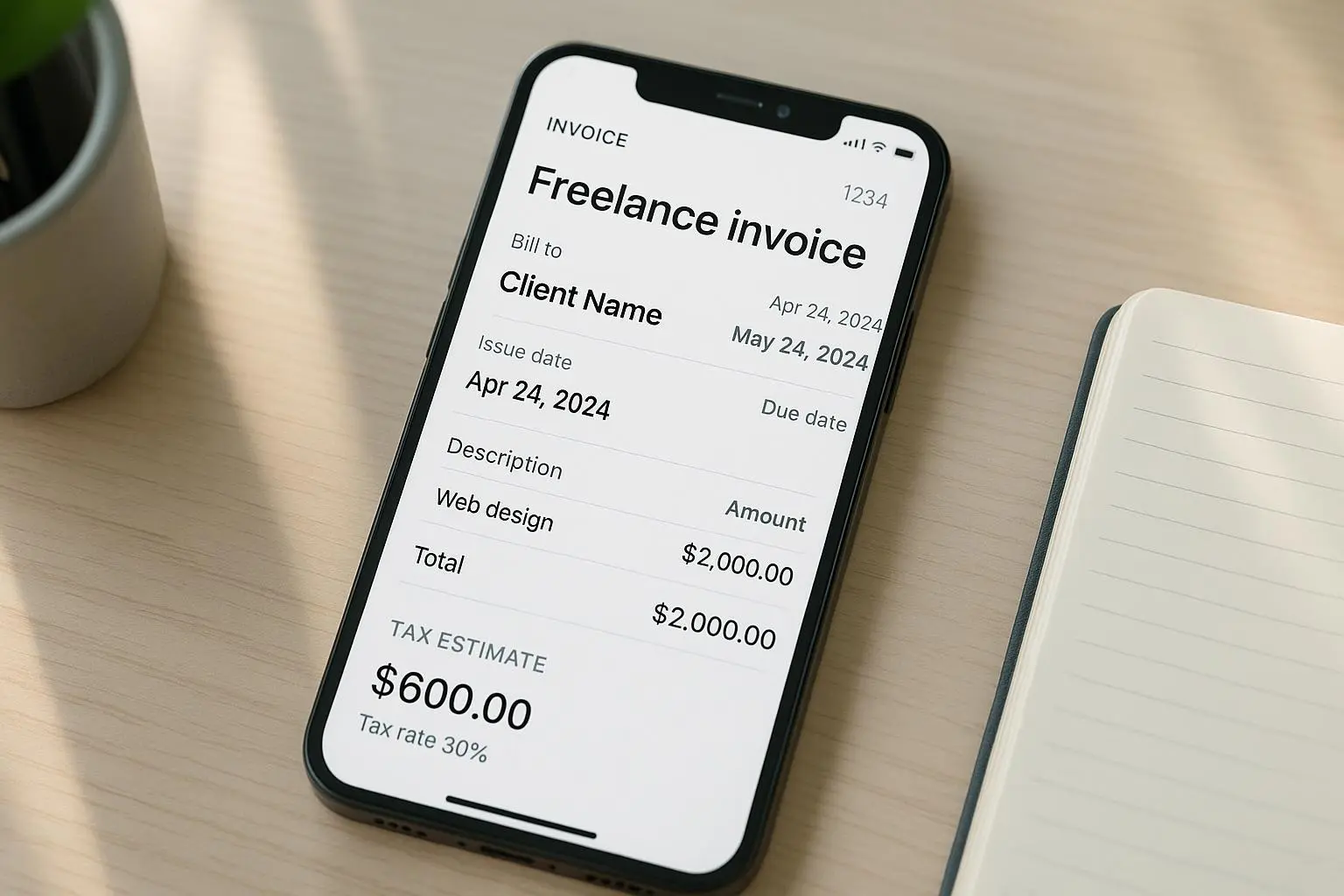
- Tap Create Invoice. You’ll see the essential fields:
- Client: Pick from saved clients (or add a new one on the fly).
- Invoice Number: Usually auto-generated, but you can customize it if you want to align with your own filing system.
- Invoice Date and Due Date: Choose the date you issue the invoice and when payment is due. Net 15 or Net 30 are common, but you can tailor this to each client.
- Items/Services: Add lines with a description, quantity, unit price, and line total. If you have recurring items, you can copy lines across multiple invoices.
- Taxes: Set tax rates you need (sales tax, VAT, etc.). The app calculates the tax portion automatically.
- Discounts and Notes: If you need to shave a bit off or throw in a friendly note about terms or preferred payment methods, you can.
- The key here is to be precise but not pedantic. A client shouldn’t have to hunt for the total or guess what you delivered.
- Make it look like your brand
- Invoicing apps offer templates. Pick one that matches your vibe—bold header, clean body, readable typography. You can tweak colors and fonts so the invoice feels like you, not a faceless form. This is small branding work that pays off in perceived professionalism.
- Preview, then send
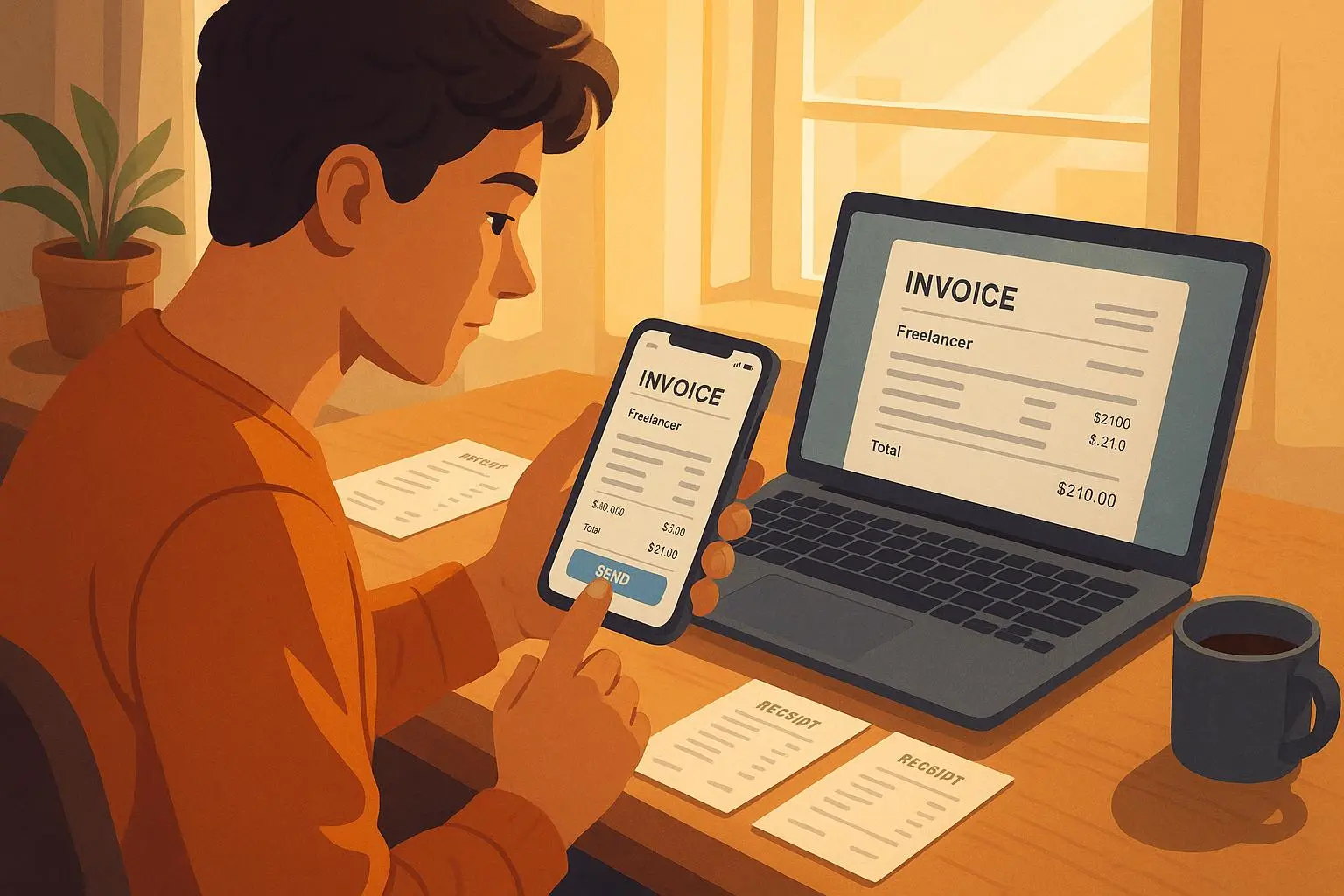
- Always preview before you hit Send. It’s surprising how often the page break or line wrap can muddy a line item when viewed on a client’s device. QuickInvoice makes it easy to spot misalignments, missing client info, or a tax rate you forgot you added.
- Track payments, not just invoices
- The app has a simple workflow for tracking status: Sent → Viewed → Paid. That visibility is the real time-saver because you can jump into a polite nudge email the moment something flips to “Viewed” or “Overdue.”
- Export PDFs for your records
- If your client needs a PDF copy or if you want to archive your invoices, exporting as PDFs is straightforward. Cloud storage integration often makes this even easier.
- Use reminders with intention
- Payment reminders aren’t nagging when they’re timely and respectful. QuickInvoice can ping clients when a due date passes or a few days after. The point is to stay aligned with your client’s workflow, not to tax their patience.
- Tax-ready records
- Keeping tax records straight is one of those grown-up things you wish you did sooner. The app’s tax settings help you maintain consistency across invoices, which makes end-of-year filing less stressful.
If you want a real-world anchor, I used QuickInvoice to invoice a small design project that spanned three weeks. The client was a startup with a tight calendar and a lean accounting process. I sent the first invoice the same day we wrapped the project kickoff, using Net 15 and attaching a brief notes section that explained the scope and included a clean breakdown of hours and deliverables. The client paid within a couple of days, and I didn’t have to chase. The second invoice—covering a minor set of revisions—was a set-and-forget click, not a negotiation session. By the end of the month, I had a neat ledger entry, a smooth payment trail, and a happy client who didn’t feel nickel-and-dimed.
That wasn’t luck. It was the combination of a good template, clear line items, and a process you actually follow. QuickInvoice gave me that process in my pocket.
A practical, real-world workflow you can steal
This is the workflow I use every week, and it’s worked for multiple clients across different industries.
- Morning: Open QuickInvoice, pull the client list, and make sure you’ve updated any new rates or services from the last project.
- Mid-morning: Create the invoice with a clean line-by-line breakdown. If you’ve got multiple deliverables, keep the description short but explicit.
- Afternoon: Send the invoice with a friendly one-liner that reminds the client when payment is due and how to pay (bank transfer, card, or PayPal).
- Close of day: Check the status dashboard. If you see “Viewed” but not “Paid” within a few days, draft a short reminder note. You don’t need to reinvent the wheel every time—keep a single, polite template.
- End of week: Export PDFs for your records and back them up to your preferred cloud storage.
A quick note on templates: I allowed a little customization, but I kept the layout simple. A clean header, a clear itemized section, and a blunt but friendly payment terms line entirely changed how clients perceived my invoices. The result? Fewer questions, faster payments, and a sense that I knew what I was doing.
Handling taxes without the headache
Taxes are a thing you can’t ignore, even when you’re focused on delivering value. QuickInvoice’s tax settings let you define tax rates once and apply them consistently. If you’re dealing with multiple jurisdictions or VAT rules, being able to switch the tax rate per client or per item keeps you from making messy math errors.
A practical example: you’ve got a client in a state with a 6% sales tax. You set that as the default tax rate for that client, then you’re not tweaking the numbers in a separate spreadsheet or, worse, in your head. You’re letting the app handle calculation and line-item totals. It’s not a substitute for accounting software if you need full double-entry books, but it is a reliable layer for simple freelancing work.
Here’s a quick micro-moment about accuracy: I once forgot to adjust a tax rate on a new client’s invoice. The error wasn’t catastrophic, but it required a follow-up note and a corrected invoice, which eats time when you’re sprinting toward deadlines. The fix was simple—double-check the client’s tax settings first, then run a quick preview. Small discipline, big payoff.
The kind of freelancer this works for (and why)
If you’re in the “I’m writing code, designing logos, or editing podcasts” camp, you’re the exact person QuickInvoice helps most. There’s no need to hire a bookkeeper for this phase of your business when you’re still establishing yourself. The mobile-first approach makes it accessible on bus rides, during coffee breaks, or right after you finish a sprint.
- Beginners and solo pros: You’ll appreciate a straightforward onboarding and templates that look professional without needing a designer’s eye.
- Small service businesses: If you’ve got a handful of regular clients, the client management features save you hours over a month.
- Creatives testing the water: The ability to customize visuals without technical fuss means you can keep your invoices aligned with your brand.
That said, there are limits. If you need advanced features like recurring invoices for a subscription business, deep time tracking, or intricate expense capture, you might outgrow QuickInvoice. It’s not trying to be every tool; it’s trying to be the one you actually use daily.
Choosing the right invoicing approach for you
There’s a moment in every freelancer’s journey when you decide whether to bolt on a basic tool or invest in a more complete system. QuickInvoice sits in a sweet spot for a lot of people because:
- It’s fast to learn and easy to use. You don’t need weeks of onboarding or a heavy training deck.
- It’s mobile-first. You’re not chained to a desk to bill someone.
- It keeps branding intact. A professional-looking invoice on a clean template can make the payment process feel smoother.
But before you commit, consider these questions:
- Do you need recurring invoices or time tracking? If yes, you might need a more robust system.
- Are you invoicing in multiple currencies or with complex tax rules? That’s another potential area where you might want more advanced features.
- How do you prefer to store records? If your tax setup requires, you’ll want something that integrates with your accounting software or a trusted cloud storage workflow.
If you’re still unsure, test-drive a few clients with QuickInvoice for a month. See how your clients react—do they respond quickly, is there less back-and-forth, do you feel confident in your invoicing? If the answer is yes, you’ve found a healthy rhythm.
Real-world tips that actually move the needle
- Be explicit in the item descriptions. A line like “Logo concept design – 3 concepts, 2 rounds of revision” is far better than “Logo design.” Specifics reduce back-and-forth clarifications.
- Set clear payment terms up front. If you’re flexible on deadlines, reflect that in a note rather than letting the client guess. It reduces disputes and helps you forecast cash flow.
- Offer a couple of payment options. The more ways you give clients to pay, the more likely you’ll close the invoice quickly.
- Keep your client data clean. If you notice a misspelled client name or an incorrect address, fix it in QuickInvoice so the next invoice isn’t based on a stale file.
On the topic of data, I learned a simple but meaningful habit: every Friday, I ran a quick audit in the app to ensure every client profile and tax setting was correct. It took five minutes, but it saved me headaches when tax season rolled around and when I needed to prepare the quarterly invoices for clients I hadn’t touched in a while. Tiny ritual, big payoff.
Why this approach pays off in the long run
Getting paid faster isn’t just about cash flow. It’s about the relationship you build with your clients. Clear expectations, reliable delivery, and professional presentation reinforce trust. When clients feel confident that you’re organized and on top of details, they’re more likely to value your time, respect your boundaries, and consider you for future work.
There’s a soft, almost invisible benefit here: you reclaim time. The moment you stop wrestling with the formatting and math of invoices, you get space to focus on delivering value. That small reclaim—minutes here, hours there—compounds. You ship better work, you ship it faster, and you get paid for it reliably.
Making it count: your checklist for the first 30 days
- Set up a consistent invoicing process in QuickInvoice, including client templates and tax rules.
- Create a simple branding template that you’ll reuse for all invoices (logo, color palette, typography).
- Save at least five test clients so you can quickly reuse client data.
- Establish a base payment term (e.g., Net 15, Net 30) and a default late fee policy you’re comfortable with.
- Set up two to three reminder cadences that feel helpful, not pushy.
- Export PDFs monthly for your records and for tax prep.
- Review your invoice templates every 30 days to make sure they still reflect your brand and pricing.
If you’re curious about how QuickInvoice stacks up against similar apps, you’ll notice a common pattern in user feedback: people like the ease of use, they want more customization options, and they frequently call out the balance between simplicity and feature depth. The voice you hear in those reviews is human—real people reporting real outcomes. That’s what you’re aiming for with your own invoicing: predictability, speed, and a touch of brand personality.
What I’d consider next if I were you
If you’re already comfortable with QuickInvoice, there are two practical moves that can push your workflow from good to great:
- Layer in a minimal accounting workflow. If you’re logging expenses or tracking time, a lightweight sync with a broader accounting tool can keep your numbers in check without burying you in data.
- Scale your templates as you grow. Start with a clean template; then upgrade to a more detailed invoice that includes a project summary, a line-item breakdown by deliverable, and a short paragraph about next steps or post-project support. It’s those little enhancements that signal maturity to your clients.
A story you’ll appreciate: last quarter, I had a six-week project with milestones—but the client wanted one final invoice that captured the entire scope plus a compact summary of hours and deliverables. I built a single invoice in QuickInvoice that blended the milestone breakdown with a concise narrative about outcomes. The client replied within an hour, thanked me for the clarity, and paid promptly. The project closed cleanly, and I walked away with a repeat engagement in a matter of weeks. It wasn’t magic. It was a deliberate approach to how I packaged the work and presented the bill.
QuickInvoice in practice: what you’ll notice
- Speed: You’ll save minutes per invoice, especially if you’re adding multiple line items or invoices to the same client.
- Clarity: Clients appreciate a straightforward line-item structure and transparent tax calculations.
- Confidence: When you know you’ve captured all elements of a job with a clean, professional invoice, you’re less likely to worry about payment disputes.
If you’re just starting out, this can feel like a lot. But here’s the truth: consistency beats cleverness every time when you’re building a freelance business. The tools you choose should disappear into the background, not shout for attention. QuickInvoice does that for me—the job gets done, I get paid, and I move on to the next project.
A final thought before you dive in
Invoicing is not the glamorous part of being a freelancer. It’s the quiet backbone that keeps you in motion. The better you make it—faster, clearer, easier—the more energy you have for the work that actually matters. QuickInvoice is a reliable tool for turning “I should invoice this” into “The invoice is out the door.” It won’t replace the work you do, but it will help you do more of it, faster, and with a level of professionalism that clients notice.