Fix QuickInvoice Pro: Resolve Export, Tax & Delivery Issues
Oct 31, 2026 • 9 min
If your invoices look perfect on screen but turn into a mess the moment you export or send them, you’re not alone. QuickInvoice Pro (QIP) is solid software—until one tiny setting breaks your billing flow and you start losing time and patience.
This post walks through the real, repeatable fixes I use when PDF exports corrupt, taxes calculate wrong, or emails never reach clients. No fluff. Just the exact places to check, why they break, and what to change so you stop chasing ghosts at month-end.
The export headache: PDF looks wrong or won’t open
Symptoms: blank PDF, missing logo, fonts off, pages rearranged, or the file is unreadable.
Why this happens: QIP uses different renderers for on-screen preview and final PDF. Custom fonts, complex CSS, or stale cached templates often trip the PDF generator.
What I do first: reproduce the problem, then simplify.
- Check Advanced Export Settings Go to Settings > Export & Print > Advanced Export Options. If the system has a "High-Fidelity Rendering" mode, enable it. That forces the PDF engine to embed fonts and respect layout more strictly.
Why that helps: preview rendering is forgiving; PDF engines are strict about font embedding and unsupported CSS. High-fidelity modes align the two.
- Verify font embedding If you use a custom or branded font, open the template editor and set the font to "embed" where possible. If embedding isn’t supported, switch to a web-safe equivalent (e.g., Lato → Arial fallback).
Quick rule: if the font file isn't included, your exported PDF will substitute and break layout.
Clear the app cache On desktop/mobile clients, cached template data can persist after updates. Clear the cache (Settings > Advanced > Clear Local Cache), then restart the app. I’ve seen logos disappear on export and come back immediately after this step.
Test with a standard template Revert to QIP’s default invoice template and export. If the default works, the issue is your custom CSS, embedded JS, or a large image.
Micro-moment: once, a client’s invoice was missing a small signature block because the signature image was 12MB. Shrinking it to 120KB fixed the export instantly—small files, big difference.
Reduce template complexity Avoid inline JavaScript in templates, and keep CSS minimal. Export engines choke on advanced layout tricks. If you must use advanced markup, test incrementally—change one element, export, and repeat.
Repair corrupted PDFs If you already have a corrupted file, use a tool like Smallpdf or Acrobat’s PDF repair to extract what you can and re-export a fresh copy once the template is fixed[1].
Tax calculation nightmares: cents, jurisdictions, and international sales
Symptoms: wrong tax rate, tax missing for a client, totals off by a few cents, VAT reverse-charge not applied.
Why this happens: misconfigured client or business jurisdiction, rounding rules, or stale tax tables are the main culprits—not the software being "broken."
Where to look first: client profiles and global tax settings.
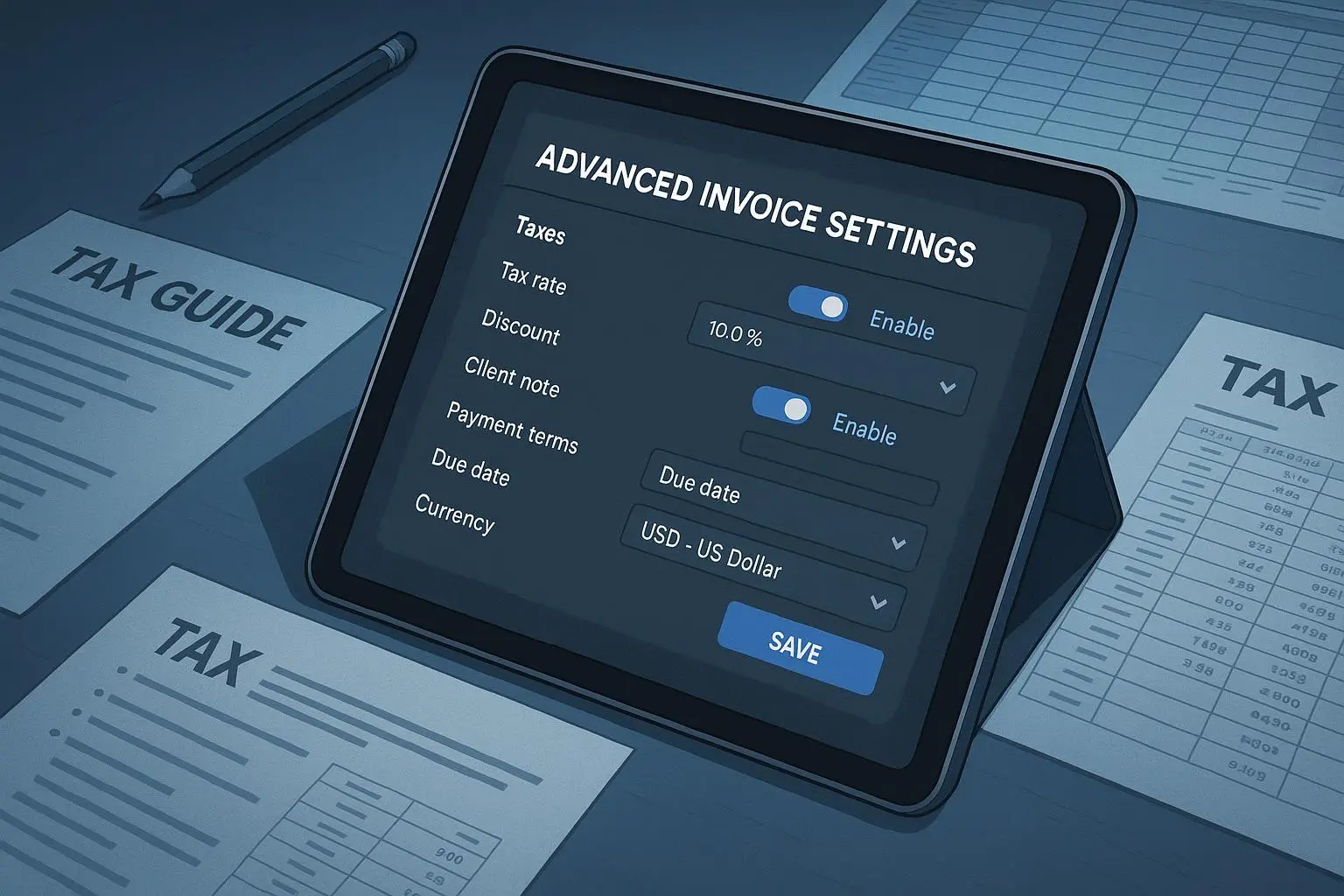
- Verify jurisdiction and client tax settings Go to Client Profiles > Tax Settings. QIP needs both your business jurisdiction and the client’s; if the client's country or state is wrong, the wrong tax rule will apply.
Real-world tip: for EU B2B services, the reverse charge is often hidden under Client Profile > Advanced Tax Overrides. I found it there after a week of searching—save yourself the headache and check Advanced fields early.
- Confirm rounding rules Open Settings > Financial > Rounding Precision. Is QIP rounding per line item or on the invoice total? Small differences per line can add up to a few cents off the total.
Example: a European seller told me their invoices were off by 0.01 EUR repeatedly. Switching rounding to “per total” instead of “per line” fixed it immediately.
Keep tax tables updated If you rely on QIP’s built-in tax database, schedule regular updates. Tax rates change; outdated tables = incorrect taxes. If you operate across states or countries, check QIP’s update schedule and run manual syncs before busy billing periods[2].
Multi-currency and exchange-rate rules If you bill in different currencies, verify whether QIP applies historical rates, real-time rates, or a locked rate per invoice. Misapplied rates can look like tax errors but are really currency conversion issues.
Audit your tax logs Use QIP’s audit or calculation log to trace which rule applied. It will show the rule ID and source (client, product, or global). Follow the trail to fix the origin, not the symptom.
Delivery failures: emails that bounce or disappear into spam
Symptoms: invoices bounce, aren't delivered, or land in spam.
Why this happens: SMTP misconfiguration, attachment size, or sender reputation issues. Often external to QIP, but fixable from your side.
What to check first: SMTP and domain authentication.
- Use a dedicated SMTP or your own mail server QIP can send via its own servers, but deliverability improves if you configure a custom SMTP (Gmail Workspace, SendGrid, Amazon SES). Verify port (587 for TLS, 465 for SSL), username, and password.
Common gotcha: expired or rotated passwords. I've opened dozens of support tickets where the solution was "update the SMTP password."
Configure SPF and DKIM If QIP sends on your behalf, add SPF and DKIM records that authorize QIP’s mail servers—or your chosen SMTP relay—to send from your domain. Without these records, receiving servers treat your emails as suspicious and push them to spam.
Check attachment sizes and formats Most ISPs reject emails over 10–25MB. If you attach multiple PDFs, compress them or use a download link hosted securely. Also prefer PDF/A for invoices; it's more stable and smaller.
Monitor sender reputation Use MXToolbox or similar to check if your domain is blacklisted. If you find blacklisting, rotate your mail service or request delisting and inform clients via an alternate channel while you fix it.
Use delivery testing Send test invoices to Gmail, Outlook, and a corporate Exchange account. If one domain sends your invoices to spam while others don’t, the issue is recipient-side filtering and may require recipient admin action.
Fallback: enable download links When email is unreliable, configure QIP to provide client portal links (secure, expiring) so clients can download invoices directly. It’s not ideal, but it avoids payment delays.
Performance and batch-processing: when QIP chokes on volume
Symptoms: crashes during batch export, slow UI when loading hundreds of invoices, partial exports.
Why this happens: large datasets, client-side hardware limits, or unoptimized database files.
First steps: split and test.
Check system requirements Make sure your desktop client runs on hardware that meets or exceeds QIP’s recommended specs. Large batches (50+ invoices) need more RAM and CPU time. If you’re on a laptop with 8GB RAM and a slow disk, export in smaller groups.
Run database maintenance Tools > Database Maintenance is your friend. Compacting indexes and cleaning orphaned records can drop export times dramatically. Schedule maintenance during off-hours.
Use batch-size throttling If you need to process 500 invoices, export in groups of 20–50. Smaller batches reduce memory spikes and make it easier to retry failed batches.
Consider a server-based export If you regularly export thousands of invoices, a server or headless instance of QIP (if available) will handle memory allocation better than a desktop client.
Monitor logs and memory Enable verbose logs when testing batch exports. Watch for out-of-memory errors or database locks. Those error messages tell you whether to increase system resources or optimize queries.
Templates: layout glitches and inconsistent formatting
Symptoms: padding jumps, elements shift after saving, non-standard margins.
Why this happens: template editor bugs or conflicting CSS rules.
How to fix: design defensively.
Use grid-based layouts Stick to simple tables or grid containers. Avoid absolute positioning unless necessary.
Lock critical elements If QIP allows "lock" for logo or totals blocks, use it. Locking prevents accidental shifts when editing other parts of the template.
Version your templates Keep a known-good version saved as a backup. If a tweak breaks the layout, revert quickly and test the change on a staging invoice first.
Test across export modes Preview, print, and export to PDF—do all three for any significant template change. If one mode breaks, you'll know which renderer is at fault.
A story: the invoice that nearly cost us a client
I once inherited a client whose invoices looked perfect in QIP but arrived in the client's accounting system mangled—line items jumbled, VAT missing, and the total was wrong. The client stopped paying until we could prove the invoice.
I reproduced the issue, and the trail led to three things at once: an outdated tax table, a custom font that substituted in the PDF export, and our SMTP relay had rotated its password without telling anyone. Fixing one thing didn't help; it was the combination.
I updated the tax tables, swapped the custom font for a safe embedded font, cleared caches, and reconfigured SMTP with proper SPF/DKIM entries. The result: invoices exported cleanly and delivered reliably. More importantly, we recovered the client's trust and avoided an escalation that would've cost weeks of billing reconciliation.
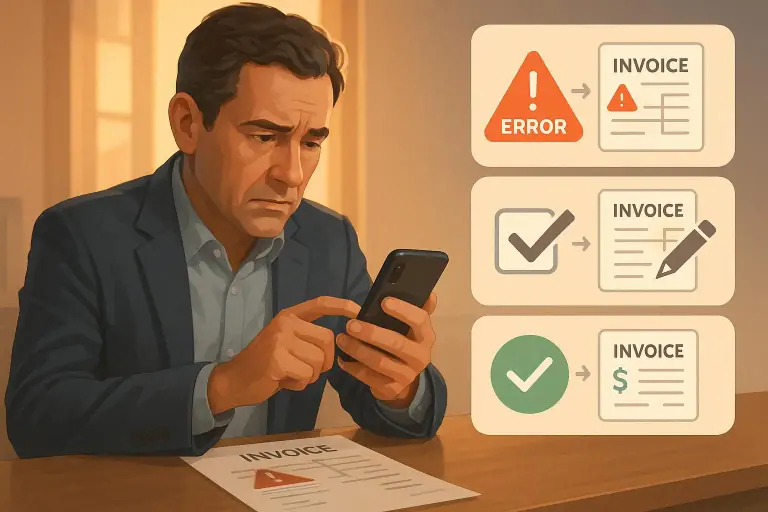
What I learned: problems often aren't singular. When billing breaks, expect a chain of small failures, not a single dramatic bug.
Prevent this from happening again: a short maintenance checklist
Do this monthly:
- Update tax tables and confirm jurisdiction settings for new clients.
- Run Database Maintenance and compact indexes.
- Test exports for three sample invoices (local, international, and large-attachment).
- Check SMTP credentials and verify SPF/DKIM status.
- Save a backup of active templates before editing.
Do this quarterly:
- Review template fonts and embedded assets; replace any >500KB images.
- Test batch exports of a representative sample size you normally use.
- Audit user accounts and permissions—ensure only necessary users can change tax settings or templates.
When to call support vs. fix it yourself
Fix it yourself if: the issue is configuration (SMTP, tax settings, cache, template complexity). Those are usually under your control and quick to resolve.
Call support when: you have reproducible crashes tied to internal QIP errors (stack traces, consistent fail during a specific operation), or when data corruption exists and database tools in QIP can’t repair it. Provide logs, steps to reproduce, and the export files—support teams resolve these faster with good evidence.
Quick checklist you can copy-paste into a ticket
- Steps to reproduce
- Sample invoice IDs and export timestamps
- Screenshots of preview vs. exported PDF
- Log snippets (if available)
- SMTP settings snapshot (redact passwords)
- Last tax table update timestamp
Good tickets get faster answers.
Final thought (not a platitude)
Billing problems are stressful because they touch cash and client trust. But most QuickInvoice Pro issues are configuration and maintenance problems that you can prevent with small, regular checks. Spend an hour each month on the checklist and you'll save days of chaos later.
References
Footnotes
-
Microsoft Developer Network. (2021). Optimizing Database Performance for Desktop Applications. Retrieved from https://www.microsoft.com/dev/database-optimization ↩
-
KPMG International. (2024). Global Tax Rate Changes and Digital Compliance Trends. KPMG. Retrieved from https://home.kpmg/xx/en/home/services/tax.html ↩