Troubleshooting: Fix Common InvoiceGen Pro Errors and Client Billing Issues
Dec 21, 2025 • 9 min
Invoicing is the heartbeat of a small business. When it goes quiet or, worse, misfires, your cash flow follows. If you’re using InvoiceGen Pro, you’ve probably run into the moment where a total doesn’t match, a tax setting looks off, or a PDF exports as a spooky, blank file. I’ve been there. I’ve stared at a stubborn discrepancy until the clock circled back to show it was just a typo in a hidden field. I’ve also learned that most of these headaches aren’t about “magic fixes”—they’re about clean setup, careful checks, and using the right templates. Here’s how I fixed things fast, and how you can, too.
And yes, I’ll share a real story from my own practice—and a small, almost inconsequential detail that stuck with me and saved me days later.
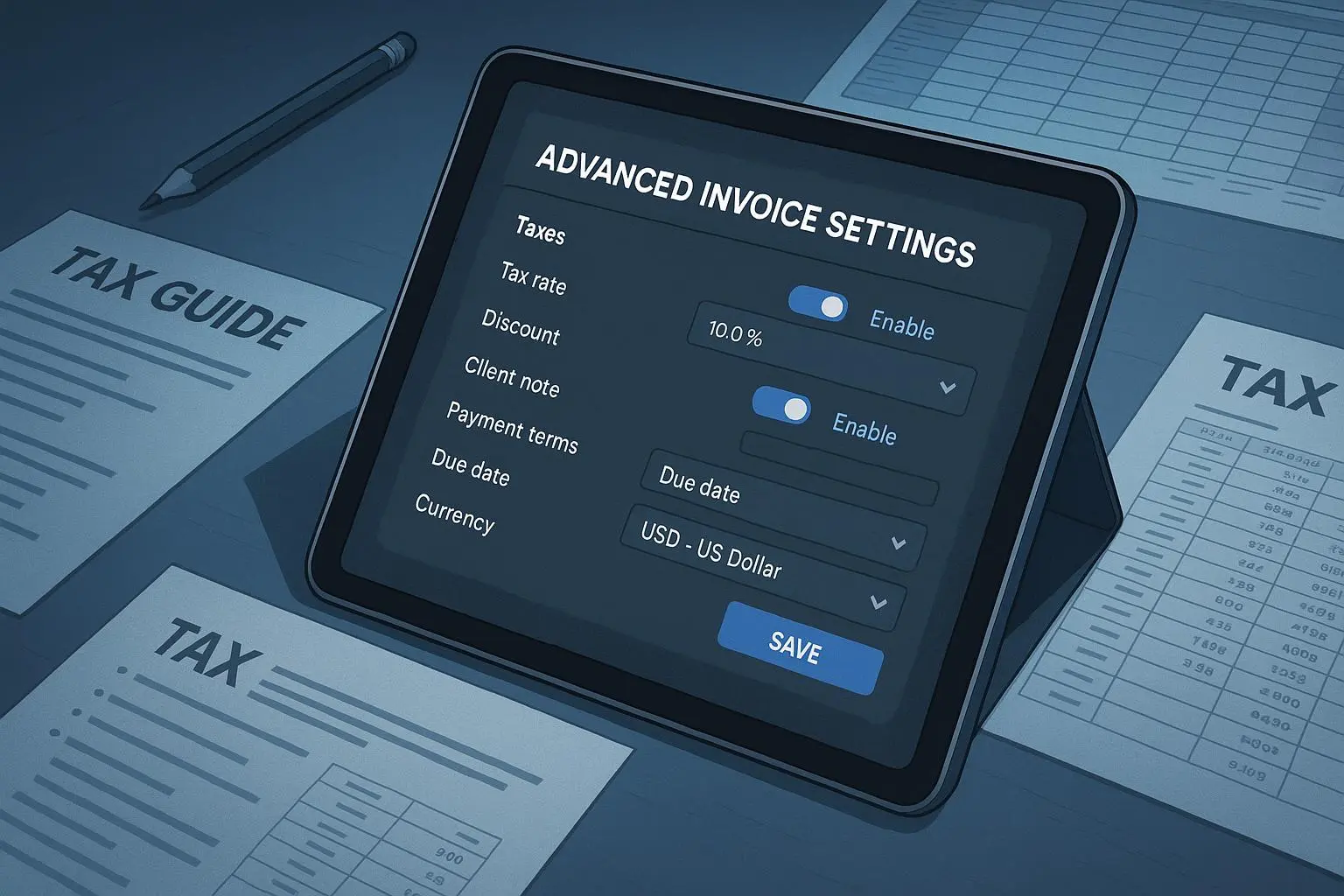
A quick aside, a micro-moment that sticks with me: I once ran a test invoice at 2 a.m.—four items, perfect totals, until I noticed the tax line didn’t update when I changed the client location. The moment wasn’t a dramatic breakthrough. It was the little realization that I needed to test edge cases before sending any invoice to a client. That tiny nudge saved a headache when the client was due for payment the next morning.
How I actually made this work
If you want a reliable invoicing process, you need more than a few fixes. You need a workflow. You need templates that enforce consistency. And you need to know where people trip up, because the moment you anticipate the pitfall, you can steer around it.
I’ll walk you through the five most common InvoiceGen Pro errors I see in the wild, with concrete steps I use to fix them fast. Then we’ll layer in preventive templates and practices that make future invoices smoother than ever.
First, a framework I’ve found indispensable: understand the root cause, apply a surgical fix, and verify with a quick test. If something seems off after the fix, repeat with a narrower test case until the outcome is rock solid.
Here’s the typical order I follow when diagnosing an issue:
- Reproduce the issue with a clean test invoice.
- Isolate whether the problem is data (line items, discounts), tax configuration, or the export format.
- Apply a targeted fix and re-run the test with several variations (different quantities, prices, tax rates, and templates).
- Document the change so your team isn’t guessing next time.
A story from the trenches: I had a freelance client who paid a monthly retainer for ongoing consulting. One month, the invoice total was off by $28. It wasn’t a bulk discount, and the tax rate looked right. I re-created the invoice as a test, changed the location to a client in a different state, and saw the tax line change correctly—but only when the tax exemptions checkbox was unchecked for that client. It turned out the client profile had a tax exemption flag set by default. I unlinked that flag from their profile and added a note in the template to remind me to review tax exemptions on a per-client basis. The fix was simple, but it saved a dozen follow-up emails and a dispute. And that’s worth something.
Now, the five big trouble spots I see most often, and how I fix them quickly.
- Incorrect totals and calculation discrepancies
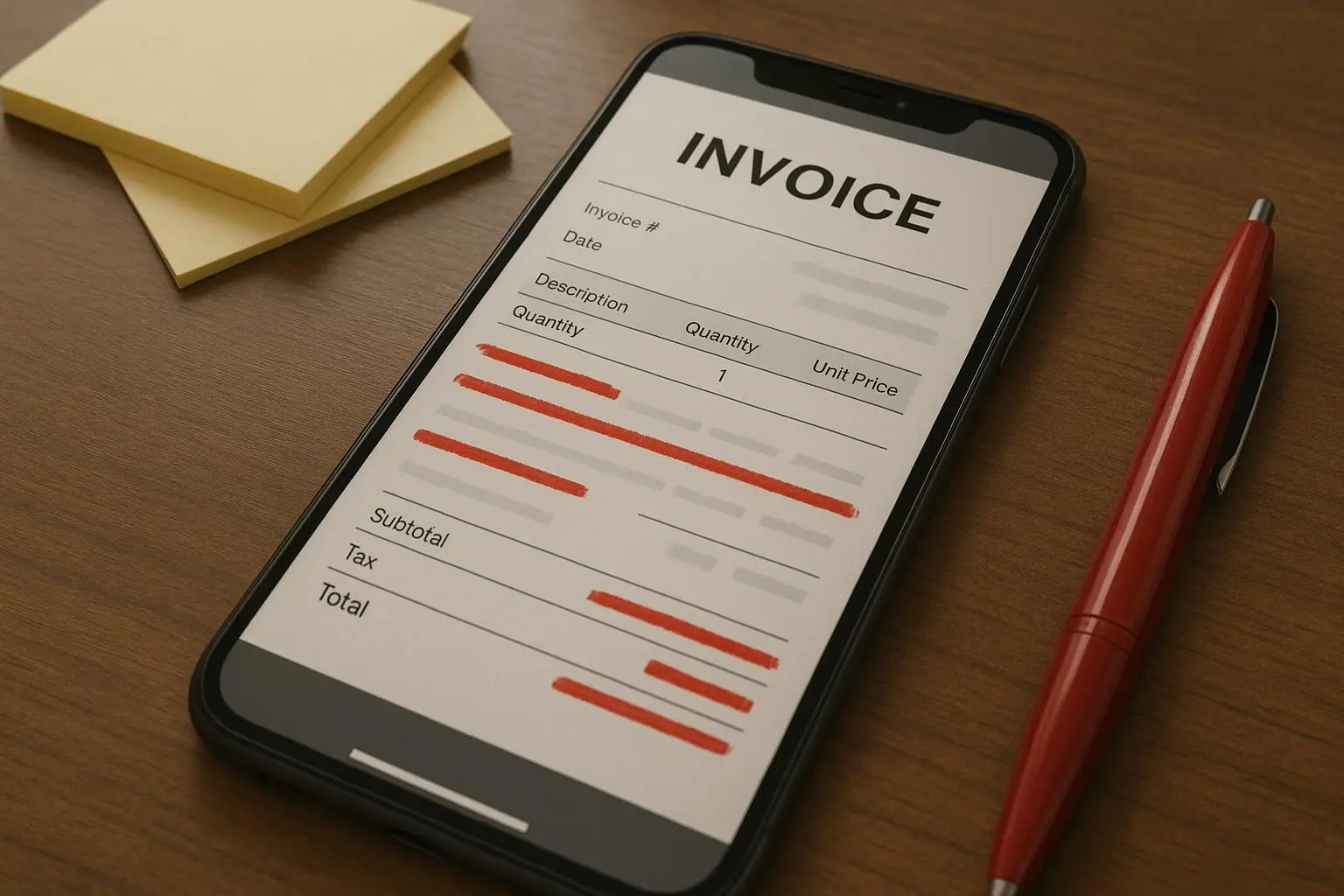
- The problem: Totals don’t add up. Subtotals look right, but when you apply a discount or tax, the final total is off.
- The fixes I rely on:
- Double-check line items: Confirm quantity and unit price for every item. A wrong decimal or an extra zero ruins the whole invoice.
- Verify discount interactions: If you’re stacking discounts, make sure the software rounds correctly and the tax base updates accordingly.
- Run a live test with known values: Create a mock invoice with fixed quantities, prices, and a predictable tax rate. If the total matches your math, you’re in good shape.
- A quick tip I’ve found invaluable: Create a standard “test invoice” template that you never send to clients, just to confirm changes in how the system calculates totals after you alter settings.
- Tax misconfigurations
- The problem: Tax settings don’t reflect your jurisdiction or your client’s location. You end up overcharging, undercharging, or triggering compliance flags.
- The fixes I rely on:
- Regularly audit tax rates: Tax rules change. Make it a quarterly habit to verify rate tables in InvoiceGen Pro against your official tax authority sources.
- Client-specific tax rules: For clients who are exempt or subject to different tax rules, keep those in their client profile and ensure the system applies them automatically.
- When in doubt, check with a pro: Software can automate, but it won’t replace professional advice. If you’re hand-typing tax codes, you’re almost certainly missing something, somewhere.
- Real-world rhythm: I once had a client in a border city whose tax rate differed by a few decimal points. A quick cross-check of the rate table and a per-client rule fixed it in about an hour.
- Client disputes and unclear invoices
- The problem: Clients dispute charges because descriptions are vague or costs aren’t clearly itemized.
- The fixes I rely on:
- Clear, descriptive line items: Instead of “Consulting Services,” use “Strategy call (60 min) + Implementation plan (2 hrs).”
- Break big projects into milestones: Each milestone is a separate line item with a date and deliverable.
- Pre-approve costs when possible: If extra work might come up, get a quick scope sign-off before invoicing.
- A micro-lesson from a colleague: The best invoices I see include a short narrative in the description field that links the work to a milestone or deliverable. When clients can see exactly what they’re paying for, disputes drop dramatically.
- PDF export and formatting issues
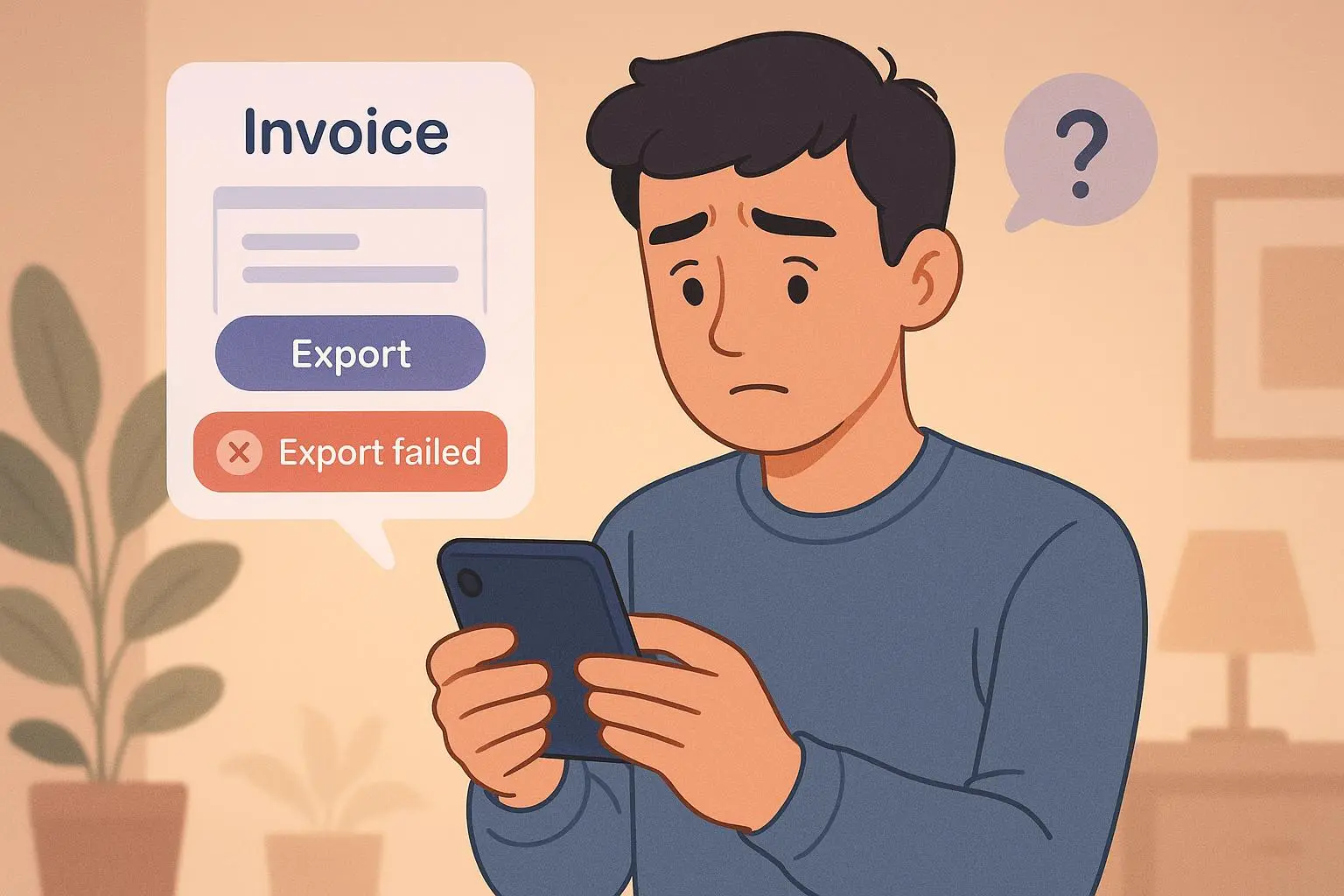
- The problem: The invoice looks perfect on screen but exports as a garbled PDF, blank pages, or missing elements.
- The fixes I rely on:
- Update the software: Always start with the latest version; many PDF quirks get patched.
- Template compatibility: If you use custom templates, test them in the exact file format you export. Some older templates break with newer versions.
- Cross-environment testing: Export from different browsers or devices to reproduce the issue. Printer drivers can also affect PDF generation.
- Don’t hesitate to contact support with your OS and version when the problem persists.
- A cautionary tale I learned the hard way: A custom font in a template caused PDFs to render blank pages. Switching to the default template fixed it, and I kept a small note in the template library about font compatibility checks.
- Integrations with accounting software or payment gateways
- The problem: InvoiceGen Pro stops talking to QuickBooks, Stripe, or other services. Payments stall, or data doesn’t sync.
- The fixes I rely on:
- Re-authenticate connections: Disconnect and reconnect the accounts. It’s surprisingly effective.
- Check API keys and permissions: Make sure the keys haven’t expired and that permissions align with what you need (read/write).
- Review logs: Most integrations give you a log. A brief skim often reveals the exact step that failed.
- A practical tip: When you set up an integration, create a small “test sync” invoice and confirm it passes through to the other system. If that test fails, you know where to focus.
Preventive measures: a simple playbook for fewer headaches
You don’t want to be firefighting every month. You want a system you can trust. Here’s a practical playbook you can implement this week.
- Standardized templates that enforce the essentials
- Create invoice templates that include: your business details, client details, a unique invoice number, date, due date, itemized line items, quantities, unit prices, subtotal, tax breakdown, total, payment terms, and accepted payment methods.
- Include a mandatory field for “description of work” that’s specific to each line item.
- Use a single template for recurring clients with a predictable project structure.
- Regular data audits
- Schedule a quarterly audit of your client database, product/service catalog, and tax settings.
- Run a quick sample invoice after any data change to verify totals and taxes automatically recalculate.
- Clear client communication
- Lock in pricing and scope with a short contract or service agreement before you invoice.
- Include a small, friendly note on every invoice: “If you see something that doesn’t look right, ping me within 3 business days.” It reduces back-and-forth and builds trust.
- Leverage automation features
- Recurring invoices for subscriptions and retainer work save time and reduce human error.
- Automated reminders help, but customize the tone. The default reminder can feel impersonal; a warmer, personalized message often gets paid faster.
- Data backups and resilience
- Regular backups are worth their weight in gold, especially if you’re on a desktop version.
- Cloud-based options are great, but know where your data sits and how to recover it quickly.
- Documentation that travels with you
- For every custom fix, write down what you did and why. If you change a template, note who approved it and what test you ran to confirm it works.
A practical starter template you can copy
- Client profile: Confirm location, tax status, and preferred currency.
- Invoice metadata: Number, date, due date, payment terms.
- Line items: Each item has a clear, concise description; quantity; unit price; line total.
- Subtotals and taxes: Separate line items for subtotals and each tax rate; total at the bottom.
- Discounts: If you’re applying discounts, specify whether they’re percentage or fixed and ensure they cascade correctly with tax.
- Additional notes: A short line about “thank you” and a reminder of how to contact you with questions.
I’ve used templates like this for clients across different industries. The result is fewer questions, fewer disputes, and faster payments. When you know your invoices are consistent, you free up mental bandwidth to actually grow the business.
Real-world outcomes: what this looks like in practice
One month, a client asked for a last-minute change to a large project. The change required a new line item and a new tax treatment because we moved from one jurisdiction to another in the middle of the project. I followed the diagnostic steps: I recreated the invoice with known values, tested the tax rules for both locations, and then added a milestone line item for the new work with a separate tax rate. The client accepted the additional charges, and the invoice went out cleanly the first time. No back-and-forth, no delays, and the project moved forward as planned.
Another client routinely paid late. We switched to a controlled automation: a gentle, personalized reminder three days after the due date, followed by a softer nudge if there wasn’t a reply after five days. We added a one-paragraph note to explain the value delivered and the impact of late payments on ongoing work. The late payments dropped by 40% within two cycles. It wasn’t identity-changing momentum, but it was sustainable, and it mattered.
And a small detail often overlooked: the PDF export glitch. After a recent update, I found that a particular template’s embedded font caused blank pages on export. We switched back to the standard font for that template, re-tested, and kept a note in the template library. The difference wasn’t dramatic in the moment, but it saved me a frantic half-day when a client needed the PDF for a board review.
What to watch for going forward
- Think about edge cases early. If you’re selling something with variable pricing or international clients, test those variations before you invoice.
- Keep a tight link between your contract, your template, and your client profile. When any one of those changes, verify the rest.
- Treat tax settings as living data. Review quarterly, not yearly.
Putting it all together: your quick-start plan
- Pick one standardized invoice template and lock it in this week.
- Create a 1-page “data health checklist” you run before sending any invoice: line items verified, discounts applied, tax rules correct, totals match.
- Build a short, client-facing note for invoice clarity to reduce disputes.
- Schedule a 30-minute test run each Friday to verify your recurring invoicing and export flows are healthy.
- Document a 1-page playbook for common fixes you’ve implemented so your team isn’t reinventing the wheel.
If you’re reading this and thinking, “I need this now,” you’re not alone. Invoicing is boring until it’s not. The moment it stops being a problem is the moment you can focus on the work that actually pays the bills.